
Site evidence
One place for your site photo evidence
Progress, quality, Part L, NHBC, golden thread and fire stopping photos. Taken in Thanex, stamped with who, when and where, and filed under your project's tags.


Different requirements have different rules. What many have in common is evidence of the work, and on site that often means photos you can trace: who took them, when and where. So why learn a different app for each?
On every photo taken in Thanex:
- Who + job titleAuto
- OrganisationAuto
- Date and timeAuto
- GPSAuto
- ProjectAuto
- Your tagsYou
Who, job title, organisation, date, time, GPS and project are saved automatically (Auto). Record type, tags and notes are added by your team (You). Stamp on or off, the details stay with the photo.
Building control asking for dated, geotagged photos? Every photo taken in Thanex saves the date, time and GPS location.
Part L photographic evidence
Take the photo while the work is still visible. Tag the plot and the detail. Thanex stamps it and files it, so you can filter by plot when your SAP assessor or building control asks.
Source: GOV.UK · Checked October 2026
- 1
Set your tags
Plots and the details your assessor asks for. Name them to match your references, such as P1 and 2a.
- 2
Take the photo
Before the work is covered.
- 3
Report by plot
Filter, generate, send to your assessor.
Can I use Thanex for Part L photographic evidence?
Yes. Your team tags each photo by plot and detail, and Thanex saves the date, time and GPS location with every photo taken in the app. Filter by plot to generate a report for your SAP assessor or building control.
How do we set up the Part L details?
Your admin adds the plots and the details your assessor asks for as tags, once. Everyone picks from the same list.
Can my assessor see when and where each photo was taken?
Yes. Every photo keeps its details: who took it, their organisation, the date and time, GPS and the project. They show on the stamp, and they're saved with the photo even when the stamp is off.
NHBC inspection photos
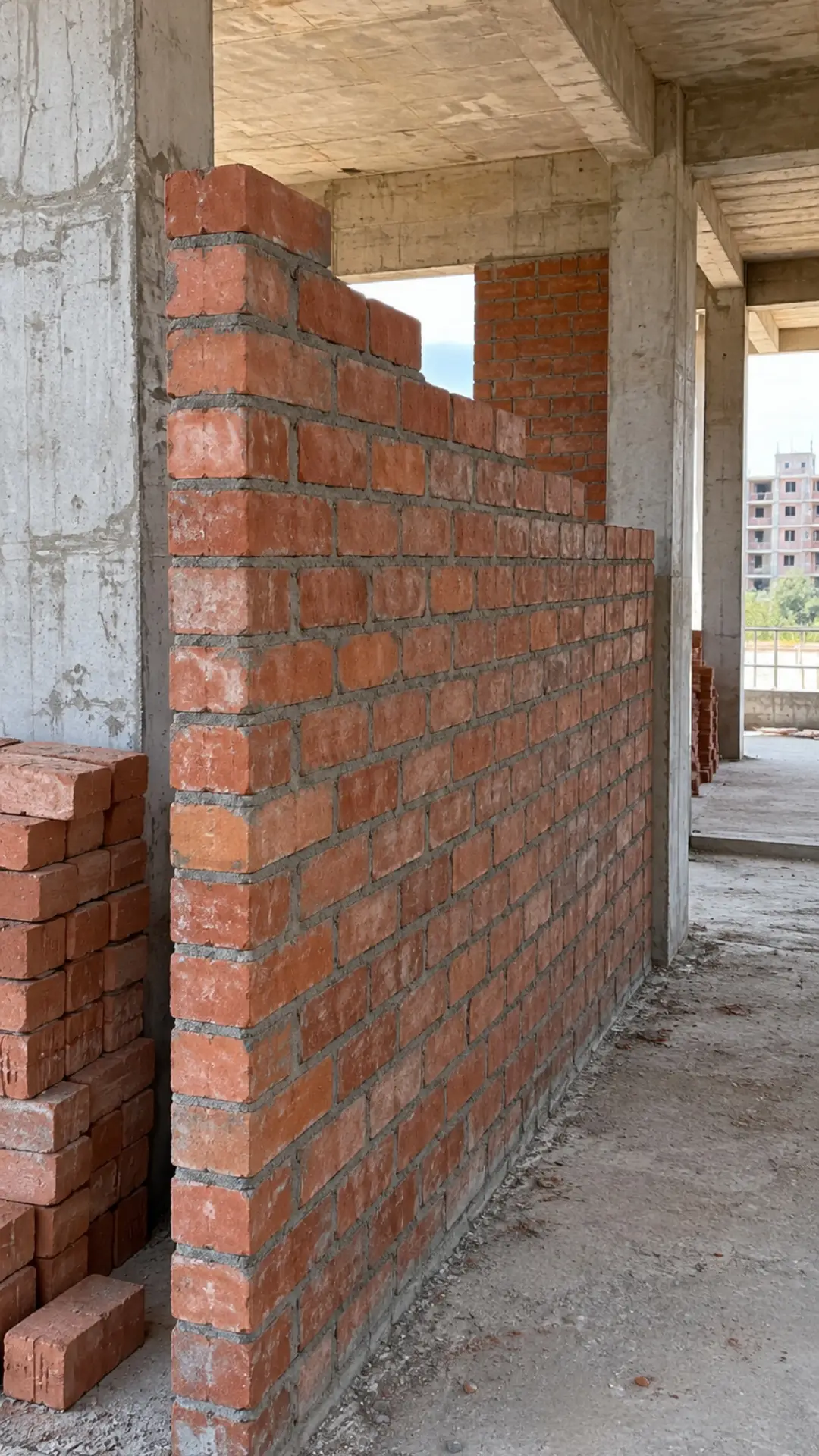
Keep your own photo record of every stage before the next trade covers it. Tag the plot and the stage, so it's ready if your inspector asks.
Source: NHBC · Checked October 2026
- 1
Set your stages
Foundations, first fix, before plastering, or your own.
- 2
Take the photo
At each stage, before it's covered.
- 3
Ready if asked
Filter by plot and stage.
Can we photograph work before it's covered up for NHBC inspections?
Yes. Take photos at each stage, tagged by plot or level. Each one is stamped and filed, ready if your inspector asks to see it.
Golden thread photo evidence
For higher-risk buildings: at least 7 storeys or 18 metres high, with at least 2 residential units, or a hospital or care home. Photograph the work as it's built, with every trade tagging it the same way. Thanex files it, so you can give your client reports for their golden thread system.
Source: GOV.UK · Checked October 2026
- 1
Invite your team
Subcontractors pick from the same tags.
- 2
They take the photos
Under the same tags.
- 3
Add it to the golden thread
Reports for your client's system.
Does Thanex help with the golden thread?
It supports the photo evidence in your golden thread process. Thanex keeps stamped, filed photos of the work as it was built, with who took them, when and where, and makes reports to add to your client's golden thread system.
Can every trade add to the same record?
Yes. Invite subcontractors to your workspace. They pick from your tags, so their photos are filed the same way as your own team's.
Fire stopping photo evidence
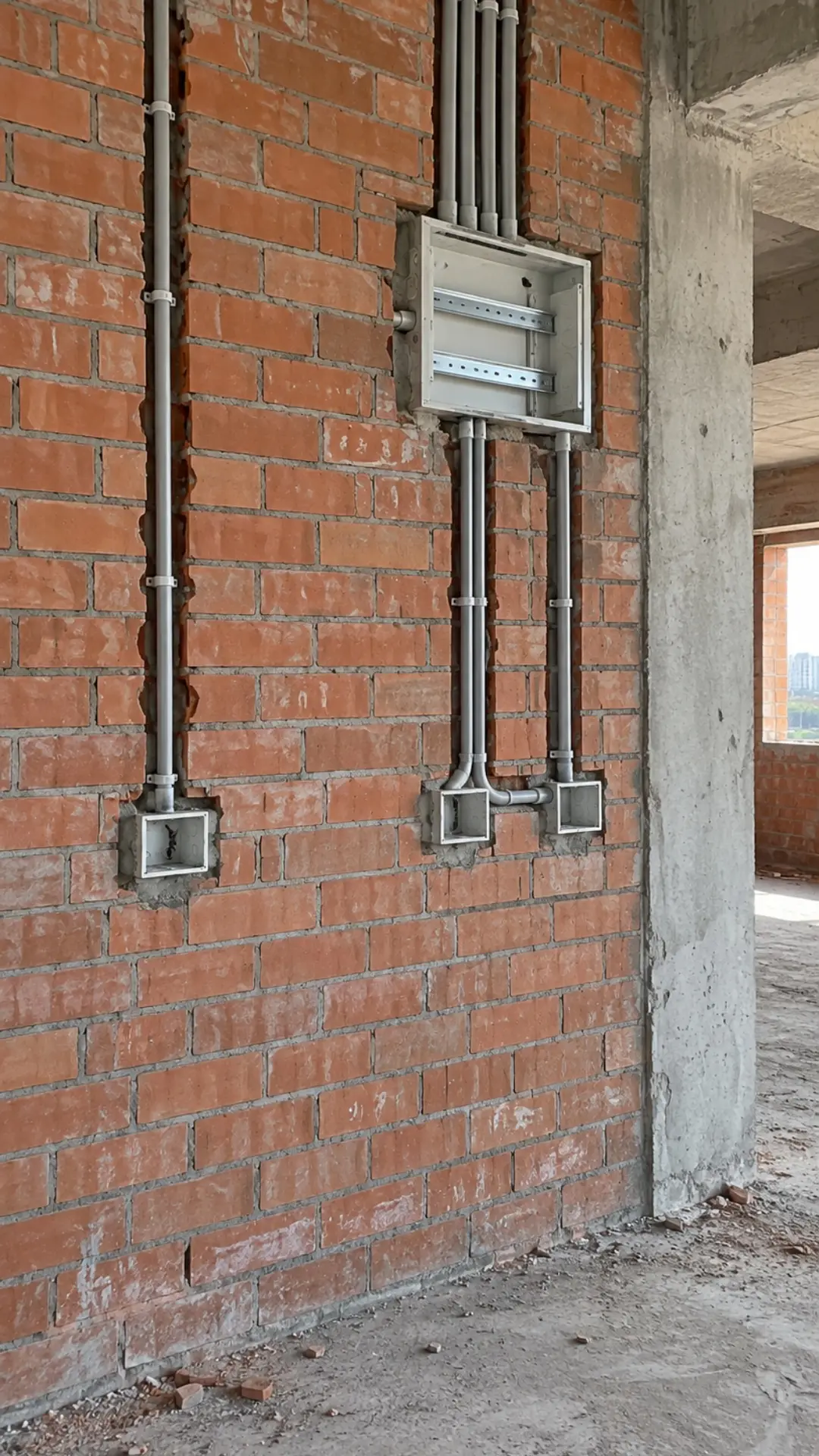
Photograph penetrations and fire stopping before they're closed up. Tag the block, level and work, and every photo is filed where you'll look for it.
- 1
Tag where it is
Block, level, room or riser.
- 2
Take the photo
Before it's closed up.
- 3
Report by area
Filter by block, level and work.
Can we record fire stopping before it's closed up?
Yes. Set fire stopping as a tag, and your team takes the photos before the work is covered. Each photo is stamped and filed under its tags.
Quality assurance photos
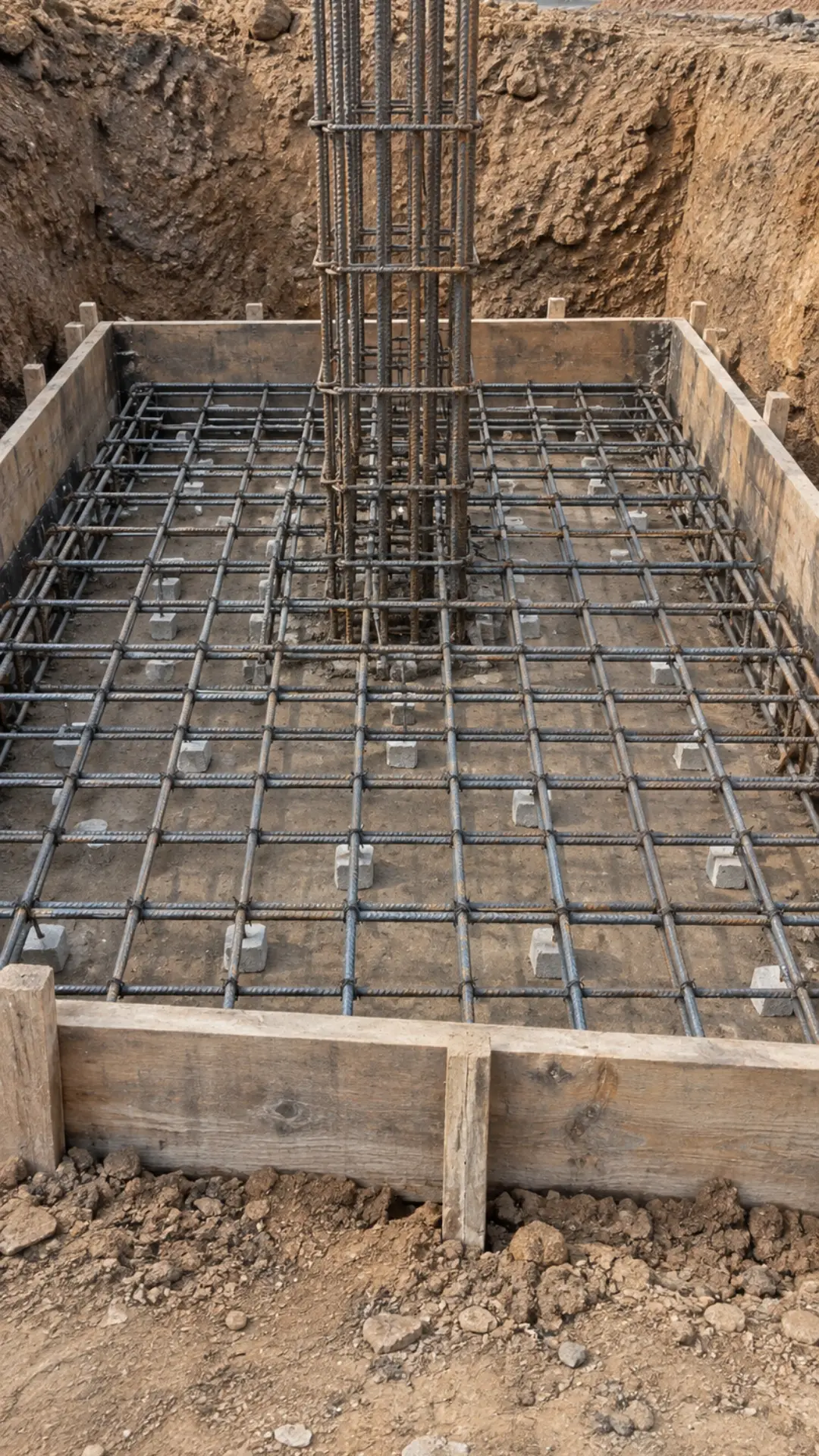
Take the photo before the work is poured, covered or closed. Tag the block, level and element. Thanex files it, so it's there when the client or inspector asks.
ReinforcementWaterproofingFirst fixConcreteFinishes
- 1
Pick record type and tags
Quality, block, level, element.
- 2
Take the photo
Before the pour, before it's covered.
- 3
Find it later
Filter by element or level.

Can we use Thanex for quality photos?
Yes. Pick the record type, tag the block, level and element, and take the photo.
Can we use it for snagging photos?
Yes. Pick the record type, tag where it is and take the photo. Filter later to find every snag.
Construction progress photos
Take progress photos as you walk the job. Thanex files them by date and tags, so you can pick the week's photos and make the PDF report before the progress meeting.
- 1
Take the photos
Every day, under your tags.
- 2
Filter the week
By date, block, level, element.
- 3
Make the report
Grouped by your tags.
How do I make a construction progress report?
Filter by the week's dates and your tags, pick the photos and generate it. The report groups them by your tags, one photo per page.
Can I report on several levels at once?
Yes. Pick several values at once, such as Level 2 and Level 3, or Columns and Slab.
Just take the photo.
Stamped, filed and ready to report.